
M8 Remote1.3 - App Store
You'll be able to see results in few seconds.
Publisher Description
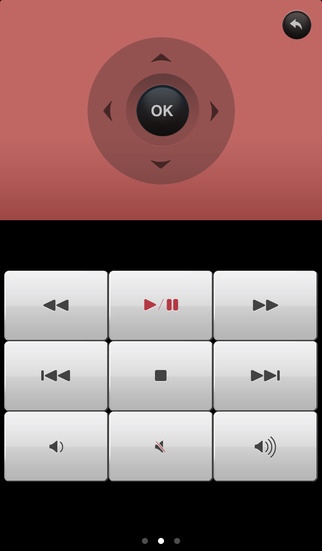
Control your Mede8er with an intuitive iPhone/iPad interface.
NEW APP: If you own a X3D Series, search for "M8 Jukebox"!
*** HOW TO CONTROL:
- Swipe in the direction (up/down/left/right) you want to go
- Double tap in the screen for OK
The M8 Remote is designed to make your life easier. Navigating trough the menu s is a breeze using touch and swipe gestures. And it works using Wi-Fi so you never have to aim at your device again!
** Features
- Control your mede8er with touch and swipe gestures.
- A clear and stunning design.
- Different tabs for easy control for the most important functions.
** Support devices **
- Mede8er MED1000X 3D (All Firmware)
- Mede8er MED500X2 (Firmware 1.0.3)
- Mede8er MED450X2 (Firmware 1.0.3)
- Mede8er MED400X2 (Firmware 1.0.3)
- Mede8er MED500X (Firmware 4.0.4)
- Mede8er MED400X (Firmware 4.0.4)
** Your iPhone must be on the same network as your Mede8er device.
Requires iOS 7.0 or later. Compatible with iPhone, iPad, and iPod touch.
About M8 Remote
The company that develops M8 Remote is Bram Mulders. The latest version released by its developer is 1.3.
To install M8 Remote on your iOS device, just click the green Continue To App button above to start the installation process. The app is listed on our website since 2012-11-13 and was downloaded 0 times. We have already checked if the download link is safe, however for your own protection we recommend that you scan the downloaded app with your antivirus. Your antivirus may detect the M8 Remote as malware if the download link is broken.
How to install M8 Remote on your iOS device:
- Click on the Continue To App button on our website. This will redirect you to the App Store.
- Once the M8 Remote is shown in the iTunes listing of your iOS device, you can start its download and installation. Tap on the GET button to the right of the app to start downloading it.
- If you are not logged-in the iOS appstore app, you'll be prompted for your your Apple ID and/or password.
- After M8 Remote is downloaded, you'll see an INSTALL button to the right. Tap on it to start the actual installation of the iOS app.
- Once installation is finished you can tap on the OPEN button to start it. Its icon will also be added to your device home screen.
Program Details
System requirements
Download information
Pricing
Version History
version 1.3
posted on 2012-11-13
Disclaimer
Official App Store Link
We do not host M8 Remote on our servers. We did not scan it for viruses, adware, spyware or other type of malware. This app is hosted by Apple and passed their terms and conditions to be listed there. We recommend caution when installing it.
The App Store link for M8 Remote is provided to you by apps112.com without any warranties, representations or guarantees of any kind, so access it at your own risk.
If you have questions regarding this particular app contact the publisher directly. For questions about the functionalities of apps112.com contact us.
